
Add Subtitles to a Video
You already have the footage. This is the shortest reliable path from a local video file to captions that are timed, styled, and ready to post.
No watermark · Video stays on your device
Before and after
Both frames are from the same Capsly demo clip. The first is the uploaded video. The second is the exported MP4, with the caption timed to the voice and one active word highlighted.

The uploaded clip. Clean footage, no captions.
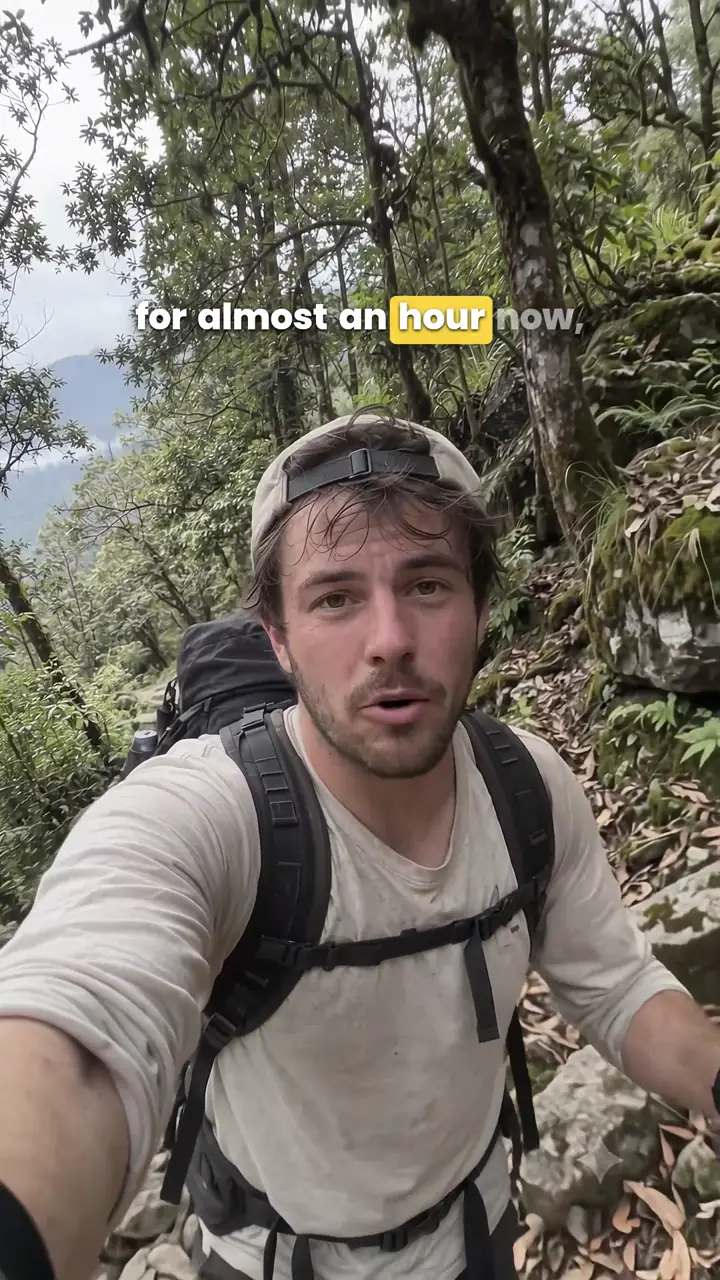
The exported MP4, with word-timed captions burned in.
What you need
- A video in MP4, WebM or QuickTime, up to 5 minutes and 500 MB.
- A Capsly account.
- A recent desktop Chromium browser for the smoothest local export.
- A clip with one speaker and little background music for the easiest first pass.
Vertical and horizontal both work, and the canvas adapts to the footage. Audio-only files such as MP3 or WAV work too; Capsly creates a frame for the captions.
Five steps from file to finished captions
- 01
Upload the video
Pick the file from your device. Playback is local. The project is saved in your browser; after a reload, re-pick the same file to reconnect the picture.
- 02
Generate the transcript
Press Transcribe. Capsly extracts the audio in the browser, uploads only that audio, and returns the transcript with word-level timing. The audio is deleted after the request. The AI subtitle generator page explains this step in more detail.
- 03
Correct the words before styling
Read the transcript once while listening. Fix names, brand terms, numbers, homophones, dropped endings and filler. This is the pass that separates usable captions from raw speech-to-text.
- 04
Check the timing and line breaks
Start each caption on the first syllable, end it when the line is read, and break at natural phrase boundaries. Keep one thought per caption and do not split a name or number across cues.
- 05
Style, preview and export
Choose a preset, adjust the type and placement, and watch the preview at phone size. Export an MP4 with burned-in captions, or SRT and VTT files, from the same project.
Burn in or keep the subtitle file separate?
The destination decides this more than the editor does. Both options start from the same finished captions.
MP4, burned in
The most predictable option for Reels, TikTok, Shorts and anywhere the player controls playback. The captions are part of the video and cannot be switched off.
SRT or VTT, separate
The right choice for YouTube, desktop editors, translation and captions you may want to edit later. The text stays a file instead of becoming pixels.
You do not have to decide before you start. Capsly exports the rendered MP4 and the SRT/VTT files from the same project. Watch the exported clip once before posting, especially the first and last caption.
The burned-in vs SRT guide goes deeper on when each format is the right choice.
The corrections worth slowing down for
- Names and brands. Correct each one once, then check every occurrence. This is the highest-value minute in the workflow.
- Numbers and units. Write them the way a viewer needs to read them, not the way the recognizer heard them.
- Homophones and dropped endings. The audio makes sense; the text may not.
- Filler and false starts. Remove repeated words and abandoned sentences unless the mess is part of the edit.
- Long lines. Break at a natural phrase, not at a fixed character count.
Fix the text first. Styling a wrong word only makes it more visible.
Your video stays on your device
The video file never leaves your device. Only the extracted audio uploads for transcription, and it is deleted when the request finishes, whether it succeeds or fails. Capsly does not use your video or audio to train models. The privacy page has the full story, and the FAQ covers supported files and languages.
Ready when you are
Caption the next video in your folder.
Word-timed subtitles, editable text, caption styles, and MP4, SRT or VTT export. The video never leaves your device.
Start creating