
How to Add Subtitles to a Video Automatically
Automatic subtitles save the typing, not the judgment pass. Here is the full workflow, from upload to export, plus the quality checks that separate usable captions from raw speech-to-text.
Before and after
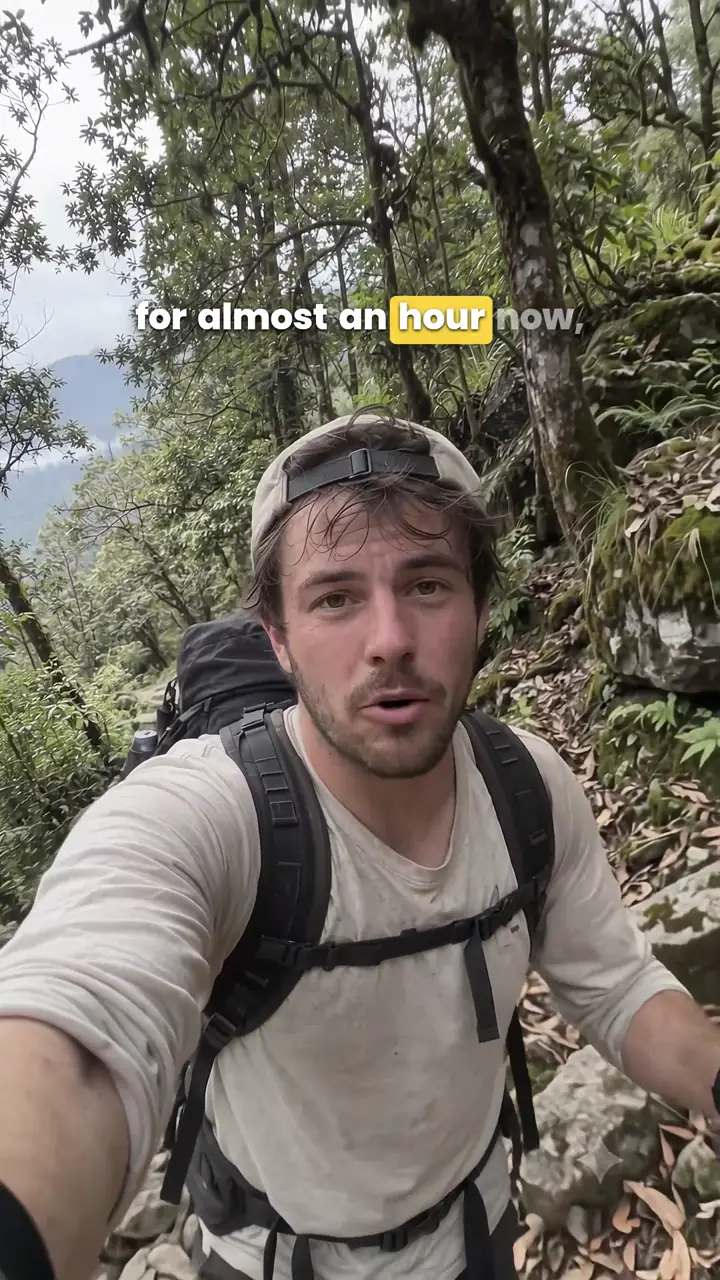
This is the result the workflow below is aiming for. Both frames are from the Capsly demo clip: the first is the uploaded video, the second is the same frame from the exported MP4, after the correction and style passes.

The uploaded clip. Clean footage, no captions.
The exported MP4, with word-timed captions burned in.
What “automatic” subtitles actually do
Automatic subtitling is speech-to-text with timestamps. The tool listens to the audio, writes what it hears, and assigns a timecode to each word. It removes the typing. It does not remove the judgment pass: names, brand terms, accents, crosstalk, and background noise still need a human read-through.
The useful output is more than a block of text. It is text with word-level timing, so you can correct one word and nudge one caption without rebuilding the whole sequence. The steps below use Capsly, but the workflow applies to most automatic subtitle tools.
What changes the quality of a transcript
Automatic transcription is not equally good on every recording. The source audio matters more than the tool:
- A close, clean voice. A phone held near the speaker usually beats a distant camera microphone.
- One speaker at a time. Crosstalk is one of the hardest problems to fix after the fact.
- Little background music. A loud music bed can turn into phantom words.
- Clear endings. Dropped word endings are a common source of errors, regardless of accent.
- Known names and terms. Speech-to-text has no context for your product, client, or handle.
If a transcript comes back messy, improving the input audio is often faster than correcting every line.
Before you start
- A video in MP4, WebM, or QuickTime, up to 5 minutes and 500 MB.
- A free Capsly account. The beta includes 15 minutes of transcription per month and 10 uploads per day.
- A recent desktop Chromium browser (Chrome, Edge, or Brave) for the smoothest local export.
Vertical or horizontal both work; the canvas adapts to the footage. Audio-only files work too, with a frame created for the captions.
Step 1: Upload the clip
Drag the file into the editor. Playback is local. Project state is saved in your browser; when you return later, you will re-pick the same video to reconnect it. That is the privacy trade-off: the picture was never uploaded, so the browser cannot restore it for you.
Step 2: Generate the transcript
Press Transcribe. Capsly extracts the audio track in your browser and uploads only that audio to temporary private storage. A speech-to-text provider receives a short-lived link, and the transcript comes back with word-level timing. The audio object is deleted after transcription. If the request fails or the delete does not complete, a short lifecycle rule removes the leftover object. Your video file is not part of that upload.
Transcription is metered by the measured length of the audio, not an estimate, and the live meter in the editor shows the month’s usage.
Step 3: Correct the words first
Read the transcript once, start to finish, while listening. This is the pass that separates usable captions from raw speech-to-text. Fix the text before you touch timing or style.
- Names and brands. Correct each one once, then check every occurrence. This is the highest-value minute in the workflow.
- Numbers and units. “15” vs “fifty”, “2x” vs “two times”. Write it the way a viewer needs to read it.
- Homophones and dropped endings. “Their/there”, “your/you’re”, “peak/peek”. The audio makes sense; the text may not.
- Filler and false starts. Remove “um”, repeated words, and abandoned sentences unless the mess is part of the edit.
- Punctuation. Commas and periods are pacing tools. They tell the viewer where a caption should breathe.
Step 4: Check the timing and flow
Word-level timing lets you nudge the first and last word of a caption. Use it to make the text follow the voice instead of arriving in blocks.
- Start on the first syllable, not a beat before it.
- End when the line is read, not when the next sentence begins.
- Keep one thought per caption and break at natural phrase boundaries.
- Do not split a name, a number, or a short phrase across two cues.
- If speech is fast, use more cues rather than shrinking the type into a wall of text.
The visual style is a separate decision. The caption design guide covers type, contrast, and placement; for vertical platforms, the Reels guide covers safe areas.
Step 5: Export for the destination
There are two jobs. A burned-in MP4 puts the captions into the pixels. That is the most predictable option for TikTok, Reels, and Shorts, where the app controls playback and the audience often watches with sound off. An SRT or VTT file keeps the text separate and editable, which is what YouTube, editors, and translation workflows usually want.
Capsly exports both from the same project: the rendered MP4 plus SRT and VTT sidecars. Preview and export share the same engine, so what you approve on screen is what lands in the file. Watch the exported clip once before posting, especially the first and last caption.
New to the formats? The burned-in vs SRT comparison explains when each one makes sense.
Where automatic captions usually fail
Automatic transcription makes the same mistakes again and again: wrong names, homophones, phantom words from music, late starts, and punctuation that turns into a wall of text. The problems guide walks through each one and how to fix it before you style anything.
When automatic transcription is the wrong tool
- Several people talking over each other.
- Sung lyrics or a mix dominated by music.
- Dense technical vocabulary with little context.
- Multiple languages in the same short clip.
- No usable speech because of wind, traffic, or a bad microphone.
In those cases, record a cleaner voice track, transcribe in short sections, or write the captions by hand. A shorter clean clip beats a longer messy one. Capsly can detect the spoken language and supports transliteration for languages such as Hindi, Bengali, Tamil, and Telugu; if the detected language is wrong, correct it or type the text manually.
A realistic time budget
For a 60-second clip, expect roughly a minute of transcription, two to five minutes of text cleanup, a minute or two of timing, a couple of minutes of styling, and a minute or two of export, depending on the machine. Most of the work is the human pass, which is exactly the part automation cannot do for you.
A sensible first project
Choose a clip of 30 to 60 seconds with one speaker and little background music. Correct every name, check the first and last caption, and export both MP4 and SRT. Watch the exported file once and compare it with the preview. That is the whole loop, and one pass teaches more than another tool comparison.
The beta is free, needs no card, and adds no watermark.
Free beta · no card
Caption your next video with Capsly.
Word-timed subtitles, per-caption styling, and MP4 + SRT/VTT exports. Your video never leaves your device.
Start creating free