
AI Subtitle Generator
Turn a video into word-timed subtitles in your browser. Capsly transcribes the speech, gives you every word to correct, and exports captions that are already styled for the frame.
No watermark · Video stays on your device
See the generator in the editor
Automatic transcription is only useful if the result is editable. Capsly opens the transcript as caption blocks on a timeline, with a timestamp for every word and a live preview of the finished frame.
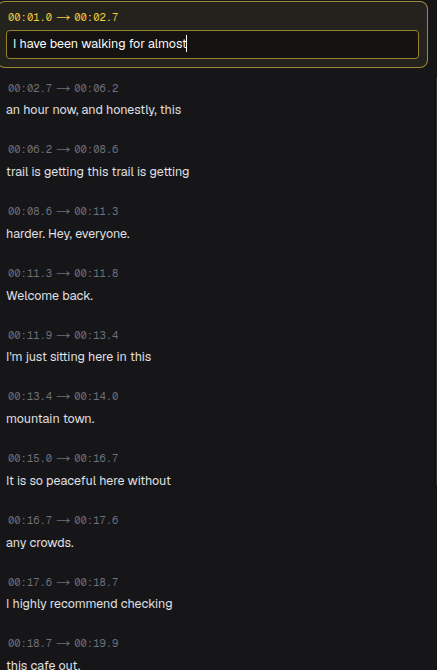
Double-click or double-tap a caption to write in place. The word timings redistribute without another transcription pass.
How Capsly generates subtitles
The process is speech-to-text with word alignment, not a template or a guessed transcript. Here is what happens between picking a file and seeing captions.
- 01
Pick the video
Choose an MP4, WebM or QuickTime file up to 5 minutes and 500 MB. The video is read locally and never uploaded.
- 02
Extract only the audio
When you press Transcribe, the browser extracts the audio track. Only that audio goes to temporary storage for speech-to-text.
- 03
Transcribe with word timing
The speech-to-text provider returns the words and a start and end time for each one. Pick a language or let Capsly detect it.
- 04
Build editable captions
The words become caption blocks you can edit, split, retime and style. The preview and the export share the same renderer.
For Hindi and Hinglish, the Hindi and Hinglish guide covers Devanagari versus Roman output and the transliteration workflow.
Every word is editable
A generated transcript is a first draft. Capsly keeps the timing attached to the words, so a correction does not force a re-transcribe. Edit a line on the timeline, or open Edit all words when you need exact start and end times.
- Fix names and numbers once, then scan every occurrence.
- Split a long caption at a natural phrase boundary.
- Nudge the first and last word when a line arrives early or late.
- Remove filler words without rebuilding the sequence.
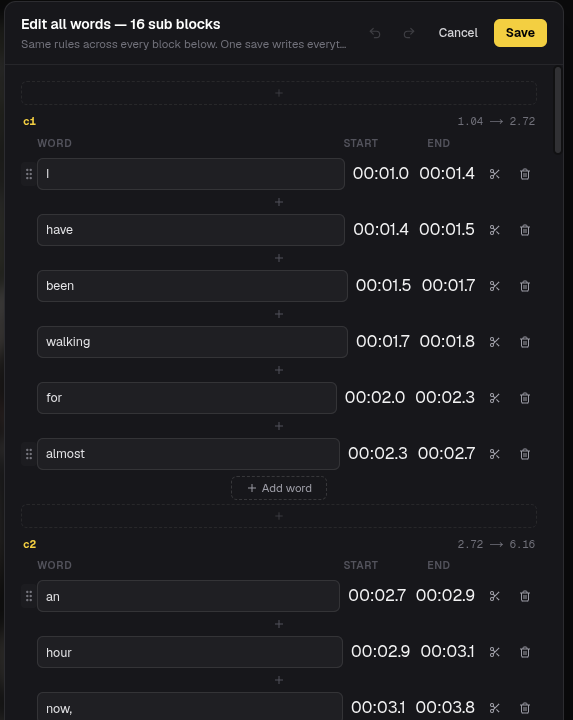
Every word, with exact start and end times. One save is one undo step.
Need the full task walkthrough instead? See how to add subtitles to a video.
Subtitles that look intentional
The preset library covers clean minimal captions, word-by-word karaoke, marker highlights, pills, boxes, neon and more. Every preset is a starting point: change the font, size, color, outline, shadow, box, highlight color and animation.
The active word can carry the highlight, so the caption moves with the voice instead of appearing as a static block. Preview and export use the same renderer, so the exported file matches what you approved on screen.
For the reasoning behind type, contrast and line breaks, the caption design guide walks through the same choices with rendered examples.
Export for the place you post
The same project can produce a finished video and a separate subtitle file. Pick the format the destination actually accepts.
MP4, burned in
The captions are part of the pixels. Best for Reels, TikTok, Shorts and any player that does not load a separate subtitle file.
SRT
A separate subtitle file for YouTube, desktop editors and translation, or for captions you may want to edit later.
VTT
A web-friendly subtitle file for HTML5 players and workflows that expect WebVTT.
The export adds no watermark. Watch the rendered clip once before posting, especially the first and last caption.
Your video stays on your device
The video file never leaves your device. Only the extracted audio uploads for transcription, and it is deleted when the request finishes, whether it succeeds or fails. Capsly does not use your video or audio to train models. The privacy page has the full story.
Subtitle generator questions
Short answers to the questions people ask before their first transcript.
How does Capsly generate subtitles?
Capsly extracts the audio track in your browser, sends only that audio for speech-to-text, and returns the transcript with a timestamp for each word. The video file never leaves your device.
Which languages does the subtitle generator support?
Seventeen languages plus auto-detect. Multilingual mode covers mixed speech across ten languages. Hindi, Bengali, Tamil, Telugu, Kannada and Marathi can also be transliterated into Roman letters.
Can I edit the generated subtitles?
Yes. Write directly on the timeline, correct a single word, or open Edit all words for exact start and end times. Changing a word redistributes the timing inside that caption without another transcription pass.
How long can the video be?
Up to 5 minutes and 500 MB per file, in MP4, WebM or QuickTime. Audio-only files such as MP3 or WAV work too; Capsly creates a frame for the captions.
Does the exported video have a watermark?
No. The MP4 export does not add a Capsly watermark. You can also export SRT and VTT subtitle files from the same project.
Is my video uploaded to a server?
No. The video stays on your device. Only the extracted audio uploads for transcription, and it is deleted when the request finishes, whether it succeeds or fails.
Ready when you are
Caption the next video in your folder.
Word-timed subtitles, editable text, caption styles, and MP4, SRT or VTT export. The video never leaves your device.
Start creating