
Why Automatic Captions Get Things Wrong (and How to Fix Them)
Automatic captions are a first draft, not a finished file. The mistakes follow patterns, and most of them are fixable in one pass.
Automatic captions are a first draft
Speech-to-text writes what it hears. It does not know your product name, the point you were making, or which word a music bed just swallowed. The result is often mostly right, and the last few words are the part viewers notice.
The mistakes are not random. Most corrections fall into a few buckets: names, numbers, homophones, quiet endings, noisy rooms, and timing. Once you know where to look, the correction pass gets faster.
Seven problems that show up again and again
- Wrong names and jargon. Speech-to-text has no context for your product, client, handle, or industry terms. Fix each one once, then check every occurrence. A wrong name is the most visible kind of caption error because the person it belongs to will notice immediately.
- Homophones and dropped word endings. “Their” and “there”, “your” and “you’re”, “peak” and “peek”. Quiet endings can disappear too: “walkin’” instead of “walking”, or a final consonant that never makes it into the text. Read while listening instead of reading alone.
- Numbers, dates, and units. “15” can arrive as “fifty”, “2x” as “two times”, or “$10” as “ten dollars”. Decide how the viewer should read each one, then format it the same way across the clip.
- Music and noise that become phantom words. A loud music bed, traffic, or wind can produce text that nobody said. Read the transcript against the audio and delete anything that is not speech, even if it looks like a plausible sentence.
- Late starts after silence. The caption appears a beat after the speaker begins. Move the start time to the first audible syllable. Do not shorten the text to hide a late start; fix the timestamp first.
- Punctuation and line breaks that read like a wall. A long unbroken line makes the viewer read instead of watch. Add sentence punctuation, break at natural phrase boundaries, and keep each caption to one or two lines.
- Crosstalk and overlapping speakers. Two voices at once are hard for people and tools. Decide which speaker carries the point, split the cues, or label the speakers. If the overlap never lets up, fix the audio instead of fighting the transcript.
Three errors you will fix most often
These are browser illustrations of ordinary captions, not export frames. The first panel shows what the automatic transcript can produce; the second is the corrected version.
Names, products, and handles are context the model does not have. Fix each one once, then check every occurrence.
The audio sounded right. The text did not. Reading while listening is how you catch the swap.
Add punctuation and split at a phrase boundary. One thought per caption, two lines maximum.
When to redo the audio instead of fixing the text
Some recordings cannot be rescued with a correction pass. Fix the source when you can:
- Several people talk over each other for most of the clip.
- Music or traffic is louder than the voice.
- The microphone clips, distorts, or picks up mostly room noise.
- The clip mixes languages in a way the transcript cannot separate.
- The speaker sings or performs lyrics instead of talking.
A clean 20 second re-record often beats 20 minutes of transcript surgery. If the audio is the problem, fix the audio.
A correction pass that takes minutes
- Listen once without editing. Mark the spots that sound wrong.
- Fix names, handles, product terms, and numbers first.
- Fix homophones and dropped word endings.
- Remove filler, repeated words, and abandoned sentences.
- Check where every caption starts and ends. Align the start to the first syllable and the end to the last word the viewer needs.
- Watch the clip on mute. If you can read the captions without effort, the text and timing are probably ready.
Do this before styling. A beautifully designed caption with the wrong name is still wrong.
How Capsly makes the fix faster
Two edits cover most of the correction pass. Neither one needs a re-transcribe.
- Double-click or double-tap any caption and type. The text opens in place, on the canvas or in the caption list. Fix a word, add one, remove one, then save.
- Use “Edit all words” for the whole document. The Captions tab opens every sub block with every word and its exact time. The pencil on a single caption opens the same precision editor for that block alone.
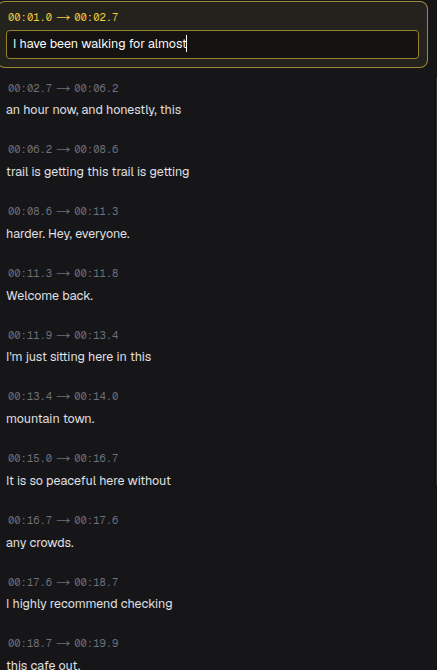
Double-click or double-tap a caption to write in place. Clicking away saves the text and redistributes the word timings.
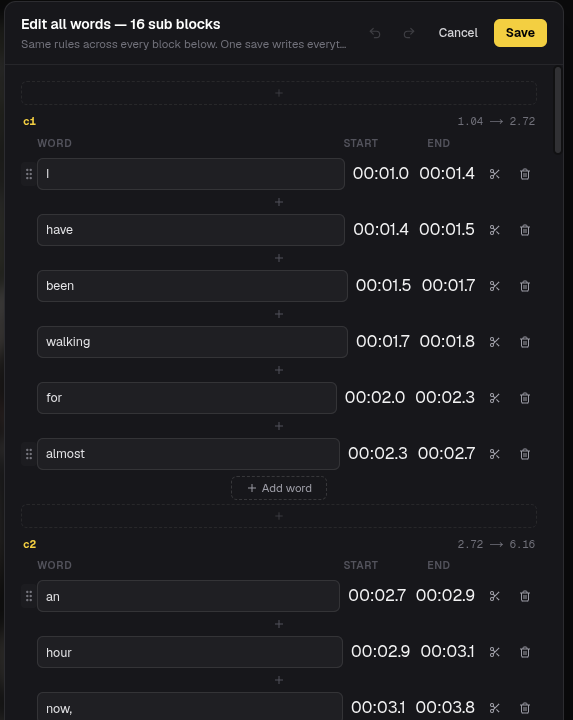
Every sub block, every word, with exact start and end times. One save writes everything as a single undo step.
If you want to place a word exactly, the precision editor has an editable time for every word. Type a space inside a word to split it in two, and remember that one save is one undo step.
What good automatic captions look like
Good automatic captions do not look automatic. They use the right words, start and end with the speech, keep one thought per caption, and use a style that survives a phone screen. The correction pass handles the words. The style pass handles everything else.
The full workflow is in the automatic subtitles guide. If the text is right and the look needs work, the caption design guide covers type, contrast, and placement. If the destination needs a sidecar file, the SRT guide explains the export.
Capsly exports the corrected captions as a burned-in MP4 plus SRT and VTT sidecars. The beta is free, needs no card, and adds no watermark.
Free beta · no card
Caption your next video with Capsly.
Word-timed subtitles, per-caption styling, and MP4 + SRT/VTT exports. Your video never leaves your device.
Start creating free